
So, just to be warned: this post is going to get a bit geeky. Some might say that’s not a Bad Thing™, but if you zone out when something gets a bit technical, you might want to jump to the end.
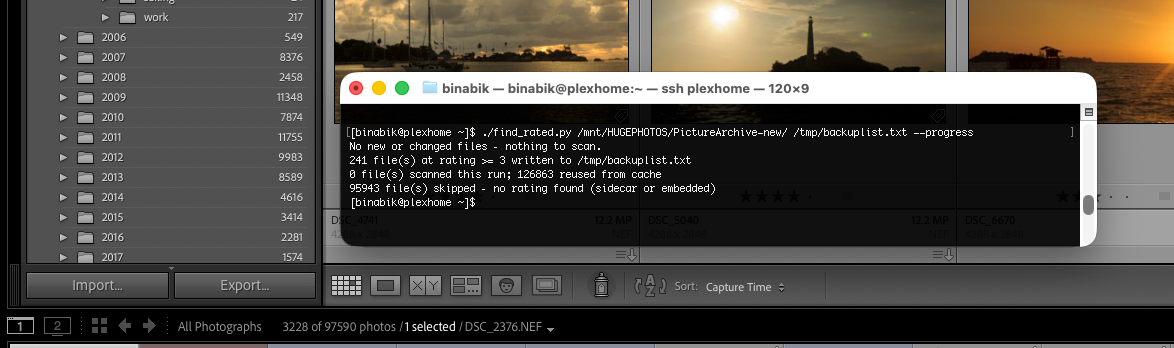
(And, yes, the intro says 414 images, the screenshot shows 3,228. There’s a reason. Read on…)
Some Ancient History
I’ve been using Lightroom since about the end of July 2006. That’s 20 years now, which is surprising to think about. Over the course of 20 years, I’ve had a number of different catalogues and storage organisation strategies. Couple this with maybe 10 different computers over that time – some of them in use at the same time – and you can guess how messy this may have become (spoiler alert: it was messy).
Sometime around 2014(-ish), I had my photo library stored on a RAID-1 external array. All good and dandy, until one of the HDDs in that array crashed and burned, and took some of the data on the second HDD with it. I probably lost around 2,000 photos at that point, but managed to recover most of the rest. At that point, I invested in a Synology NAS, running a RAID-6 array with Western Digital spinny disks. And consolidated all of my photos into a common location – albeit still with historically disjointed organisation strategies.
Fast-forward a bit, and 2 countries and 3 house moves later, the Synology NAS is still there, most of the library was fairly well organised, my main Lightroom catalogue had all the metadata I needed, and I could usually find a photo I was looking for within a minute or two.
As long as the NAS was running (and still healthy), and I had access to the Lightroom catalogue.
Complications Arise
When I switched back from Windows to Mac, and went through a Lightroom upgrade at the same time, my catalogue did not survive the migration. Actually, that’s a lie broad generalisation, and the topic of a different upcoming post. It did mean I lost all of my metadata and correlation to the (mostly) date-based organisation structure I had for my photos.
But at least I still had all of my photos, and could find some of the ones I was looking for by knowing a general date range and/or camera image number. I spent a few days with Claude and a lot of scripting to consolidate my photos into a single root folder with a consistent date-based structure, and reconstructed what metadata was available from folder paths and some XMP sidecars. That allowed me to build a new Lightroom library and have at least some metadata.
It did make me painfully aware of another problem: an ideal backup strategy is 3-2-1:
- 3 copies, on
- 2 different media, and
- 1 off-site location
On this scale, I was at 1-1-0. If the NAS were to decide to let out the magic smoke, then not only would Houston have a problem, Ty’n-y-Groes would too…
Naïve Approach
Getting to 2-2-0 was pretty easy: buy a good quality external hard-drive, configure HyperBackup on the NAS, and then sit back and breathe a bit easier. That bit was easy, the whole photo library now exists in 2 copies on 2 different media.
However, the complete archive is nearly 2TB. Cloud storage prices have gone down, but uploading 2TB would take nearly a week, not to mention incur monthly costs for a lot of data I don’t actually need.
So, I know which photos I want to backup: basically any photos rated 3 stars or higher (in my catalogue, that means deliverables). That data is available in XMP files, if you save them from Lightroom. Or it’s written into EXIF data if the native data format supports it (JPG, TIF, DNG, etc.). Or not written at all, if Lightroom thinks it shouldn’t be (video files, for instance). But I’m getting ahead of myself – this didn’t really manifest itself until I started trying to get the backup implemented.
First Script
The first scripted approach was trivial:
- Read the XMP sidecars
- Determine which images have a rating higher than 3 stars
- Add them to a list
- Backup those files to Backblaze
First problem that I found: I had about 25,000 XMP files against 95,000 images. So, a bit of back and forth with my trusty sidekick Claude, and we added exiftool to the mix.
This now was extremely slow. OK, let’s add caching. The speed was now mostly acceptable, when running on a real computer. But once I ported the script to the NAS, there was no way this script would ever complete on a daily basis.
Crisis Time
So, how do I backup my photos to the cloud? Am I going to now have to backup the whole library? Do I need to spend a few days culling old useless photos (not that that’s a bad thing)?
Speed was one problem, the other problem is shown in the opening image: this approach found 241 photos instead of (at the time) 414. Incomplete backups are worse than none… Time for a cup of tea and a rethink.
Fun with XMP. Or Not…
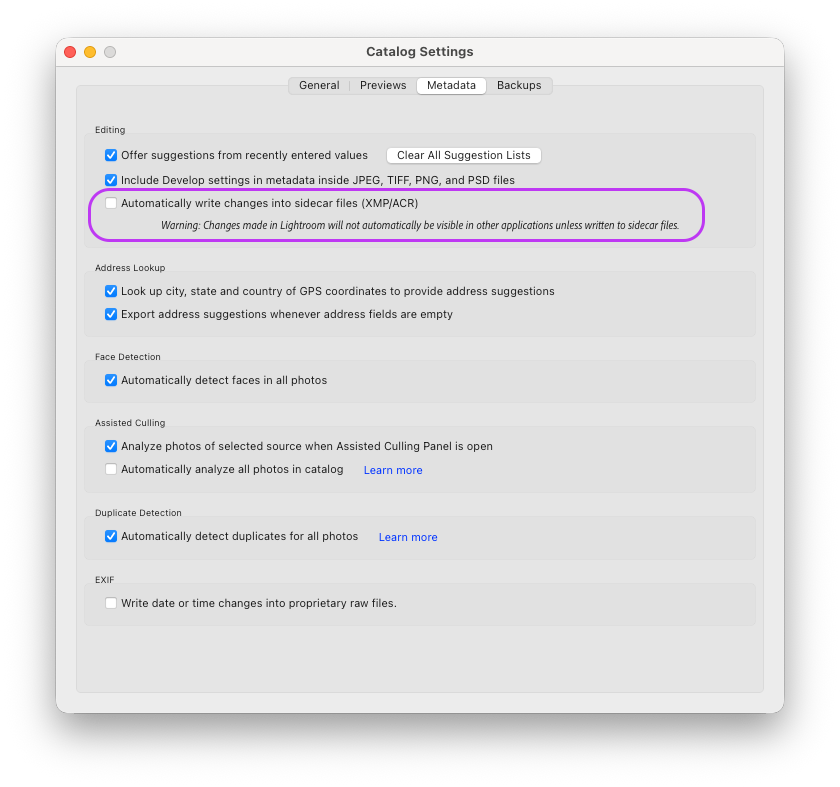
Simple way to get Lightroom to sync metadata to disk? Check the box “Automatically write changes into sidecar files”. Well, that has problems when it’s writing to an SMB network share. File handles get dirty, Lightroom thinks metadata has changed on the disk, cowardly refuses to write the changes and reads in old metadata.
Bit of a nightmare. Especially with multiple catalogues, but that’s a different story for another day.
LR is a Database
When I sat back down, armed with a cup of tea, Claude politely questioned, “Why don’t we just read Lightroom’s database?”
Wait, what?
I know databases. I’m comfortable with databases. Using databases is so much easier than scanning files. How did I not know that .lrcat files are SQLite databases in disguise? All of a sudden, things are looking up.
Storage Location Mismatch
Reading databases with scripts is trivial, and automation is easy. As long as the script can access the database.
And that’s the crux. Lightroom does not support storing catalogues on network shares. This means the backup script running on the NAS would have access to the photos, but not to the catalogue. Or, if I were to run the script on my laptop, it would have access to the catalogue, but not guaranteed access to the photos.
Claude suggested a two-pronged approach:
On the laptop. A script queries the master
.lrcatfor everything at rating ≥ 3, dedupes virtual copies (365 of them share a file with their master), translates the paths, and writesbackup_files.txt. You run it after an editing session — it takes milliseconds, since it is a SQLite query returning a few thousand rows rather than 97,000 metadata reads.On the NAS. The nightly Task Scheduler job does nothing but
rclone copy --files-from backup_files.txt. No walk, no exiftool, no cache, nofind_rated.py. The only slow part left is rclone uploading files that are genuinely new, which is unavoidable and already incremental.
That’s all fine and dandy, but my NAS is not always running. It’s also on the other side of the office, and I’m lazy, so I have to stand up to turn it on. Which I only do if I absolutely have to and get annoyed every time. I gave Claude the instruction:
Let’s try the watch-based one, that would be preferable, as I don’t use Lightroom every day. It may be the case that the NAS is not turned on, so that script should trigger a wake-on-lan for the NAS and mount the
photoshare from it. The script will need to monitor 2 catalogues.(ideally, it would be awesome if the script could also trigger a WOL when one of the catalogues is *opened*)
Claude ran with that, and provided a python script and a .plist configuration file. After some back and forth, the script now does the following:
- When Lightroom is opened,
launchdsees the catalogue lock file and wakes the NAS up. - When Lightroom is closed,
launchdruns the script to query all configured Lightroom catalogues and writes a backup list to the NAS rcloneruns nightly on the NAS and backs up the rated files to Backblaze.
Current Status
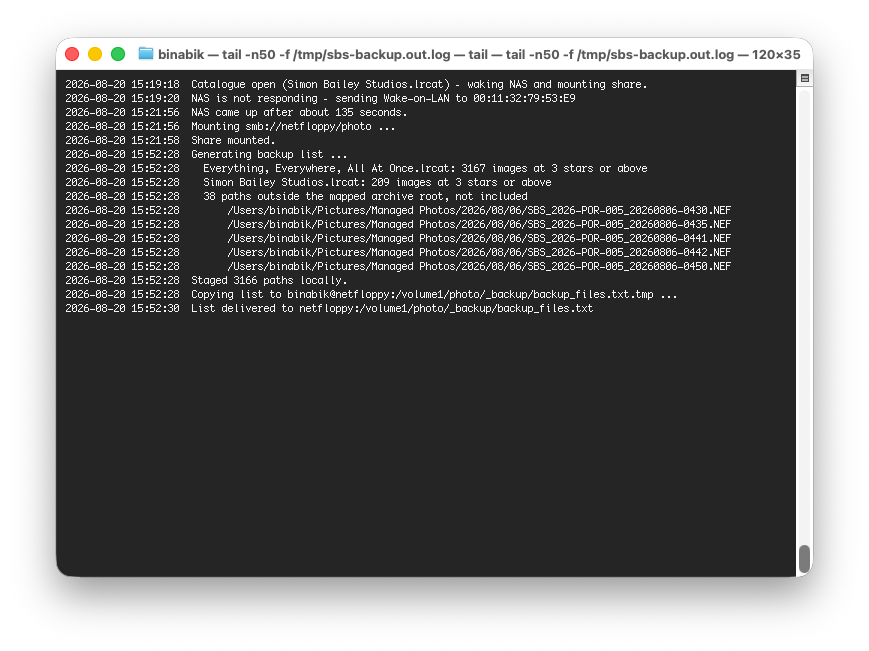
It Just Works™. When I open Lightroom, the NAS spins up automatically within seconds, and about 2 minutes later, the volume is mounted and Lightroom can see all of the photos. When I close Lightroom, the backups (including the catalogue files themselves!) are written straight to the NAS, and the backup job to Backblaze kicks in overnight.
So, now I have a 3-2-1 backup strategy. Let the celebrations ensue.
Some lessons learnt:
- Incomplete backups are worse than none
- Lightroom Catalogues are glorified SQLite databases
- Rethinking architectural approaches is never a Bad Idea™
- Reading one catalogue meant that I could read any catalogue, including potentially old, “corrupt” ones. More tk…